
How to Bookmark FrontPorch for quick access
(and make it an app)
Want faster access to your neighborhood's FrontPorch site? You can bookmark it on your computer or add it to your phone's home screen so it's always just one tap away. Here's how:
On Your Computer (Safari, Chrome, or Edge):
Open your FrontPorch community site in your browser:
Once the page loads:
Safari: Click the Share icon (box with an arrow), then select "Add Bookmark." or "Add to Dock"
Chrome: Click the star icon in the address bar, then click "Done."
Edge: Click the star icon in the address bar, choose where to save, then click "Done."
On your Smartphone or Tablet
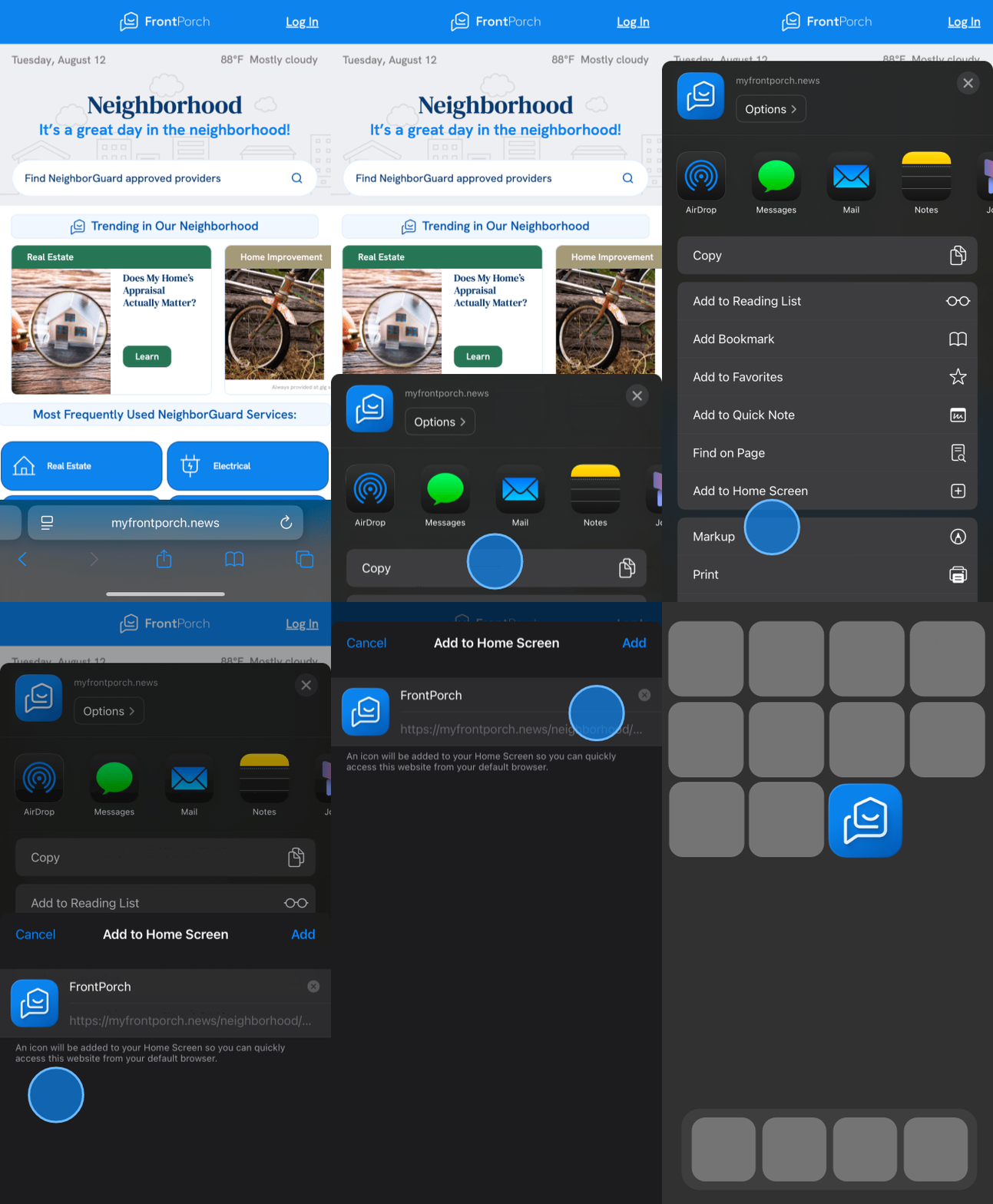
iPhone or iPad (Safari):
Open your FrontPorch community site in Safari.
Tap the Share icon (box with arrow at the bottom).
Scroll down and tap "Add to Home Screen."
Rename it if you'd like, then tap "Add."
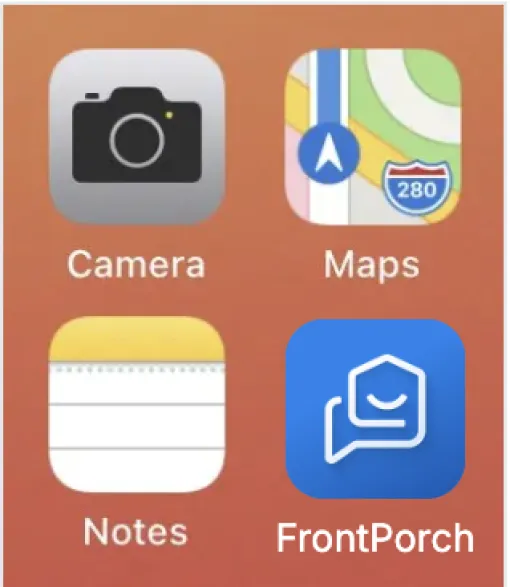
You'll now see a FrontPorch icon on your home screen, just like an app.
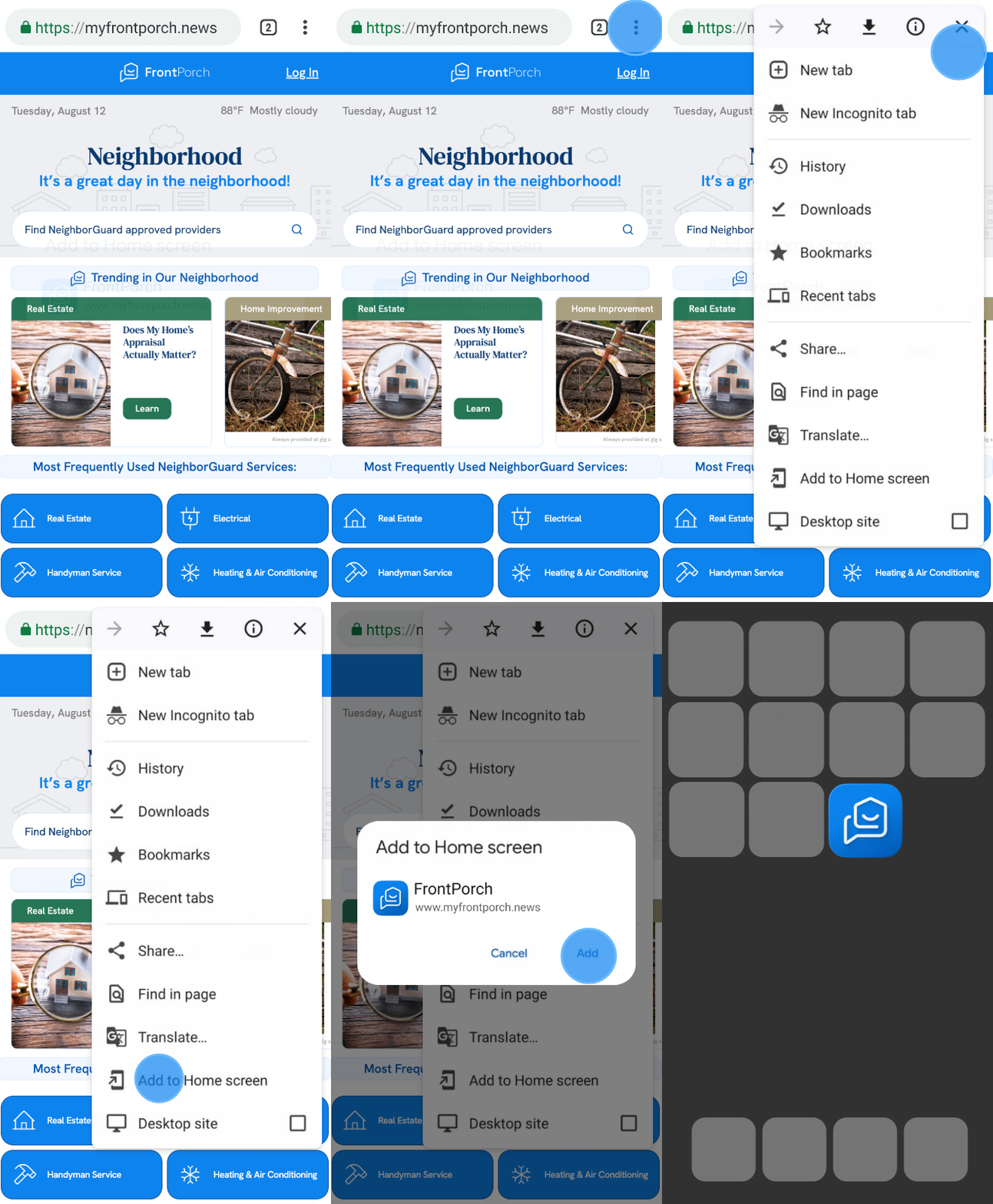
Android Devices (Chrome):
- Open your FrontPorch site in Chrome.
- Tap the three dots in the top-right corner.
- Tap "Add to Home screen."
- Rename it if needed, then tap "Add."
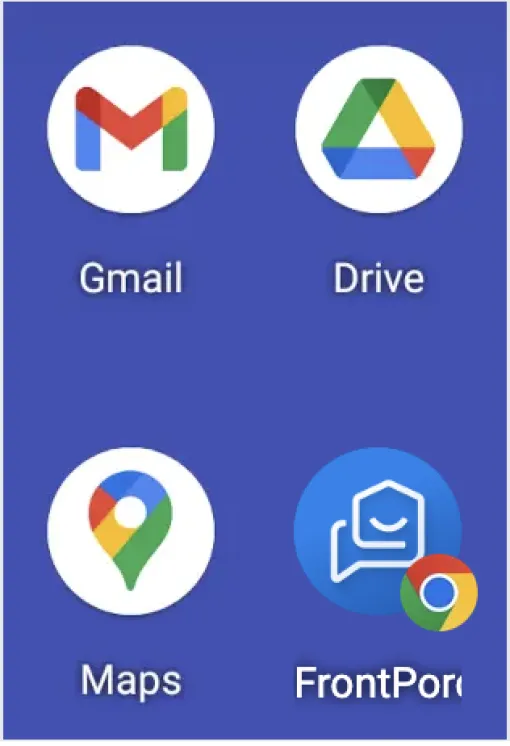
You'll now see a FrontPorch icon on your home screen.